If you’re having trouble scanning your Pampers Club code, you can usually solve it by making sure you’re scanning the right code, improving your phone’s camera view, or entering the code manually.
Note: This article covers issues with scanning or entering codes from your Pampers packs in the Pampers Club app. It doesn’t cover problems with redeeming rewards or using coupons in stores to purchase products, redeeming promotional codes or using 2FA codes.
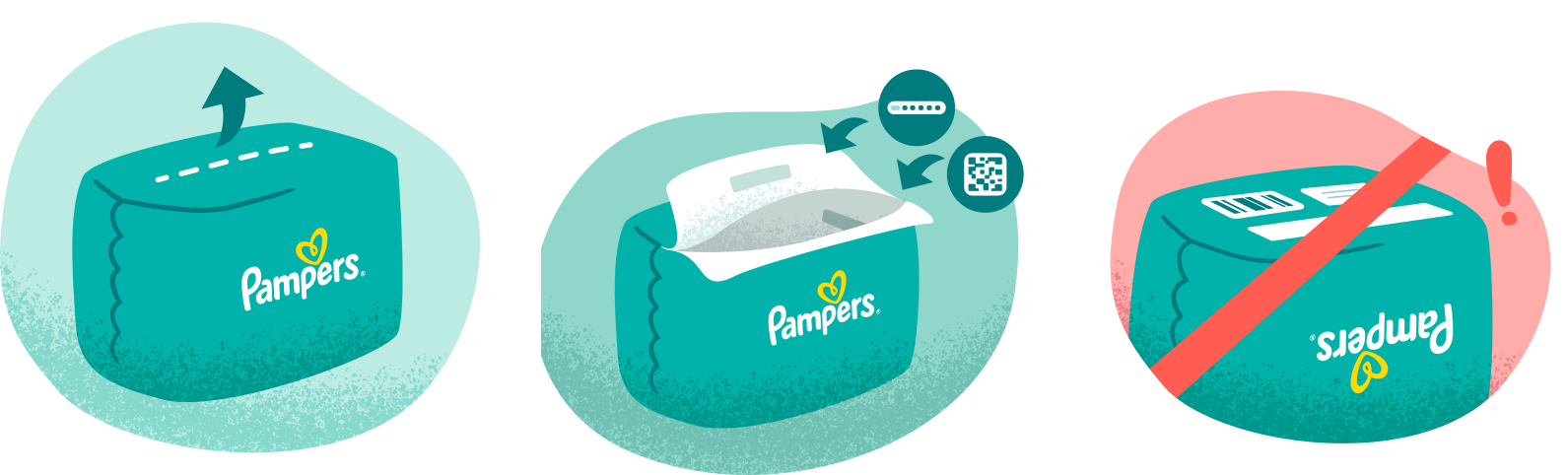
- Find the Right Code
- The Pampers Club code is either a QR code (square black and white pattern) or a “Reward Code” (letters and numbers on the inside of the Pampers packaging).
- Avoid scanning the long shop barcode used at store checkouts, product numbers, or other codes from the outside of the packaging.
- On the app’s scan screen, check for “Where is the code?” for a picture guide
- Improve Scanning Conditions
- Tap “Scan code” in the app.
- Hold your phone steady, about 20–30cm from the code.
- Smooth any wrinkles and clean the code if needed.
- Use good lighting; move to a bright area (near a window or under a light) but avoid direct glare on shiny plastic.
- Slowly move the phone a little closer and then a little further away until the code looks sharp on screen.
- Try rotating your phone or the pack 90 degrees and try again.
- Enter the Code Manually

- On the scan screen, tap “Type code instead” or “Enter code manually”.
- Type the code carefully, double-checking similar characters (e.g., 0/O, 1/I/l, 8/B).
- Carefully type the whole Reward Code, paying attention to look‑alike characters: 0 (zero) vs O (the letter O), 1 (one) vs I (capital i) vs l (lowercase L), 5 (five) vs S, 8 (eight) vs B.
- Tap “Submit” or “Confirm”.
- If the code is valid, the app should show a success message and your Balance should increase.
What if I see “code not found” or “code not recognised” when scanning the code in pack?
If you’re seeing messages like “Code not found”, “Code not recognised”, or “This code does not exist” even though your code looks right, there are a few quick checks you can do. If the issue continues, you can send us a screenshot of the error, photo of your code and pack, and our advisors will be happy to help.
- Check Your Code Entry:
- Make sure you’ve typed every letter and number exactly as printed on your pack.
- Check that you haven’t added any extra spaces before or after the code.
- The number of characters you entered should match what’s on the pack.
- Try Again:
- Carefully enter the code one more time, going slowly and double-checking each character.
- If the Error Still Appears:
- Keep a screenshot of the error message.
- Take a clear photo of the code on your pack and of the outside of the packing including the shop barcode.
- Keep the pack handy as we might need more details from it.
- 'Contact Us' using the button in the website footer below.
I’ve tried everything and still can’t get my points - what should I do next?
If you’ve scanned and tried to enter the code manually, and still been unsuccessful, the best thing is to 'Contact Us' using the button in the website footer below.
- Keep a screenshot of any error messages.
- Take a clear photo of the code on your pack and of the outside of the packing including the shop barcode.
- Keep the pack handy as we might need more details from it.
- 'Contact Us' using the button in the website footer below.
